
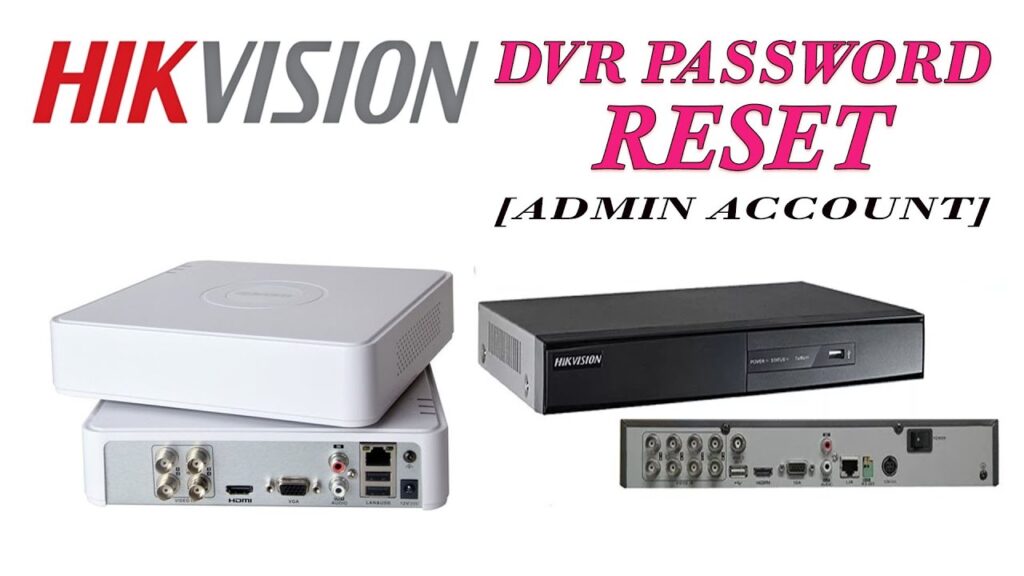
Hikvision DVR Password reset (SADP Tool):
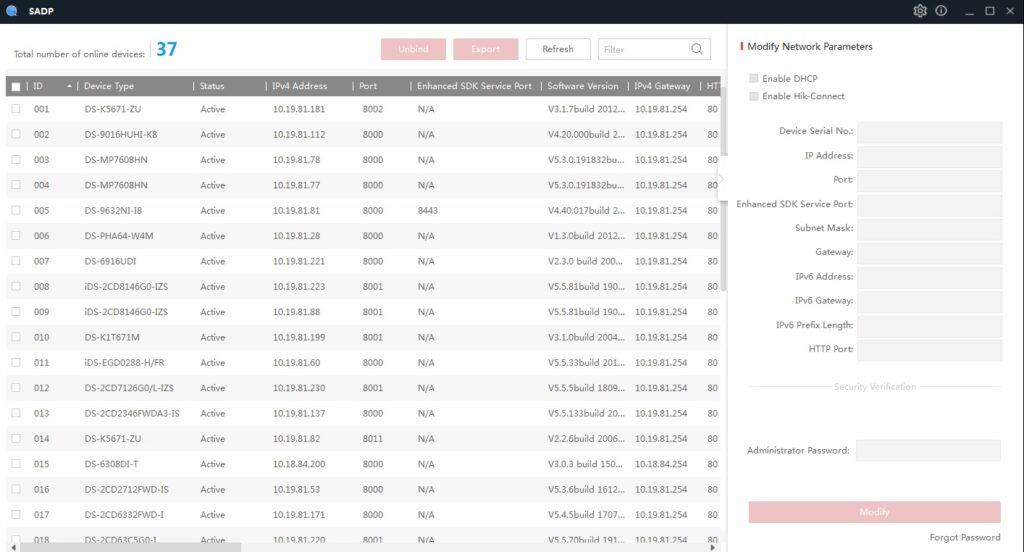
Resetting Hikvision DVR password (or NVR) is a secure process designed to protect your device from unauthorized access. To reset, you typically use the **Hikvision SADP (Search Active Device Protocol)** tool, running it on a PC that is on the same local network as the DVR. Open SADP, locate your device, then click **“Forgot Password.”** You will be prompted to export an XML file containing the device’s serial number and timestamp. Send this file to Hikvision Technical Support, who will respond with a secure reset file or a key. Import the received file in SADP (by selecting **Import File**) and set a new, strong password. This method ensures your device remains in your control, while preserving security integrity.
Hikvision SADP Tool Download:
To reset a Hikvision DVR or NVR password, you first need the **SADP tool**, available for download from Hikvision’s official website. Navigate to the Support → HiTools → Desktop Tools section, or directly download from the Hikvision tool repository. (Once installed on your computer (Windows or macOS), ensure that your PC and Hikvision device are on the same subnet. Then launch the SADP tool, which will automatically scan and list all connected compatible Hikvision devices. Use the SADP interface to choose your device, and click **“Forgot Password”** to begin the reset process. Depending on your device’s firmware, SADP may require a security code, an encrypted reset file, or a QR-key during the reset flow.
Hikvision SADP Tool Faq's:
Can I reset the DVR password remotely over the internet?
No — Hikvision requires the password reset to happen (locally), using either SADP or a connected monitor and mouse.
How long is the reset file valid?
The reset file sent by Hikvision after you export the XML is time-limited; often it’s valid for (48 hours).
Why does SADP ask for a security code?
SADP may prompt for a security code if your device’s firmware supports that method — in that case, you share device information (serial number, start time) with Hikvision, and they’ll provide the matching code.
What if SADP asks for an encrypted file instead?
Export an XML feature code from SADP and email it to Hikvision. They’ll return an encrypted file that you then import back into SADP to set a new password.
Is it possible to reset via QR code?
Yes — some devices let you export a GUID (QR) via SADP. Share it with Hikvision, and they’ll send a short key (8 bytes). Use that key in SADP to reset your password.
Do I need to keep SADP open while waiting for the reset file?
Yes — after exporting the XML from SADP, keep it running until you import the reset file from Hikvision.
What if I reboot the DVR before importing the reset file?
Rebooting may invalidate the process — the reset is tied to the session and timestamp, so avoid restarting the device until after reset.
What kind of password should I set once reset is done?
Make sure to choose a *strong, complex password* (e.g., 8–16 characters, mixing uppercase, lowercase, numbers, and special symbols) to improve device security.
Disclaimer: The information provided here is intended for general guidance only. Always refer to the official Hikvision documentation or contact Hikvision Technical Support when performing sensitive tasks such as password reset. Procedures may vary depending on device model, firmware versions, and regional support policies. Follow all safety and security best practices while handling your DVR or network devices.